¶ Introduction
The Slip Business Portal allows anyone with a professional account with a recruiter subscription to create vacancies on the Slip Platform.
Vacancies are an integral part of the Slip ecosystem, as they bring those in search of a job in touch with those in search of interns and/or employees.
In the Slip app, vacancies show up in the following places:
- In the “Vacancies” tab of your company profile
- As a pop-up when we match the vacancy with a user profile
- This action currently triggers after a user posts a story
- Attached to a Vacancy Story
- A Vacancy Story is a special type of Story where the vacancy is showcased using media, with additional overlay information to entice the user to open the full vacancy
We are working on the following features:
- Vacancy matching without user-defined trigger moments (i.e. real-time based on external factors)
- Explore Vacancies: a section in the “Explore” screen similar to the “Companies” tab, showing only vacancies ranked by match score for the user
If you have any questions, concerns or other requests, please don't hesitate to contact us by sending a mail to support@slip-app.nl.
¶ Vacancies Overview
To create, edit and publish your vacancies, head to the vacancies page:

The overview will show all (if any) vacancies currently created for your company. Use the toggle bar to filter between active vacancies, draft vacancies and hidden (un-published) vacancies.
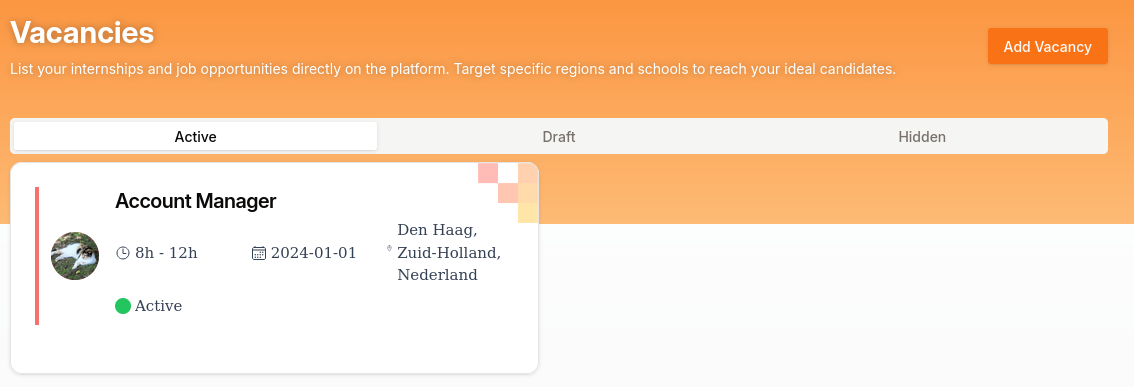
Click any vacancy to open its details. The vacancy details page allow you to publish and unpublish vacancies, and create new Vacancy Stories for the selected vacancy.
If no vacancies have been created yet, click the “Add Vacancy” button to start creating one.
¶ Create a new vacancy
On the Vacancies Overview page, click the “Add Vacancy” button:
You will be taken to a new page with two columns. Fill in the vacancy details on the left, and see how it will look in the app on the right. Keep in mind the target demographic and use language that aligns with theirs. This will be the first time they learn about your open position, so it is important to draw them in with keywords they connect with.
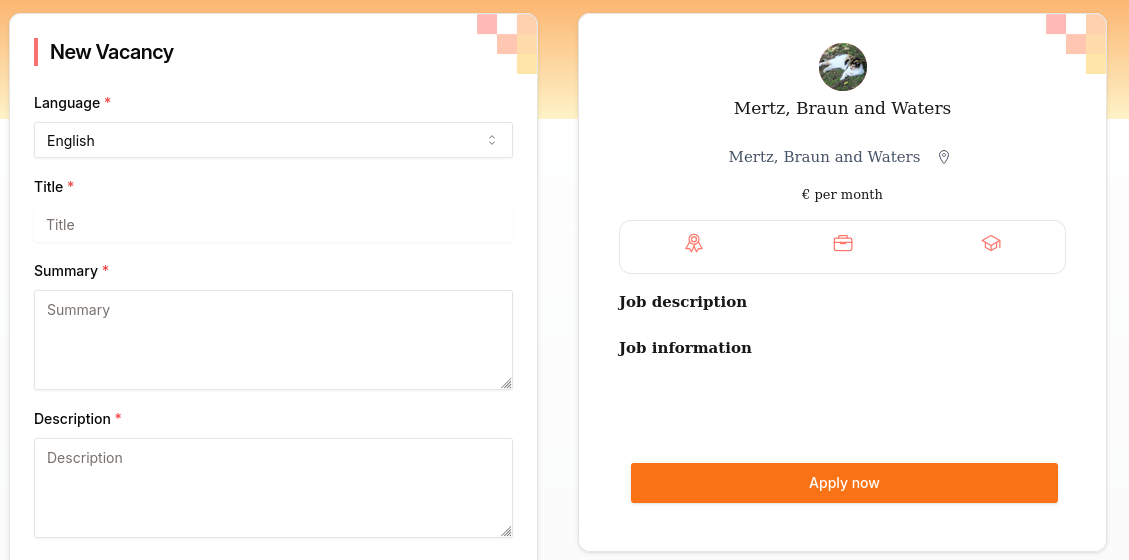
Take extra note of the following fields:
- Language:
- To target and service your audience, you can create multiple vacancies in different language for the same job position.
- Summary:
- When the vacancy is displayed in its short form (e.g. in an overview of a company's vacancies), the summary should allow the user to quickly get an idea of what the vacancy is about, in addition to its title.
- Employment Type, Required Education Level, and Expertise:
- These fields are displayed in the panel with three columns. You are free to fill in any text here, though it is recommended to match the text with the icons (ribbon, briefcase, graduation cap).
- Location:
- Though it is possible to enter any text here, choosing a location from the suggestion list puts your vacancy on the map, allowing us to match users based on distance.
- Requirements:
List any requirements here by clicking the + button. To keep it concise, use a cap of about 4 requirements. - Benefits:
- Add benefits by clicking the + button, add a short description and choose a matching icon. The default star icon is always a good option.
- Targeted Industries:
- Select the industries or fields of work that your vacancy is about here. The fields will be displayed at the top of the full vacancy view, in the summary view of vacancies (e.g. in lists of vacancies), and will be used to target users.
- Website:
- This is the external URL that the user will be taken to when they click “Apply now”. The link should lead to a funnel on a 3rd party service where you can take care of onboarding the user.
After filling in the details, the vacancy should look a bit like this:
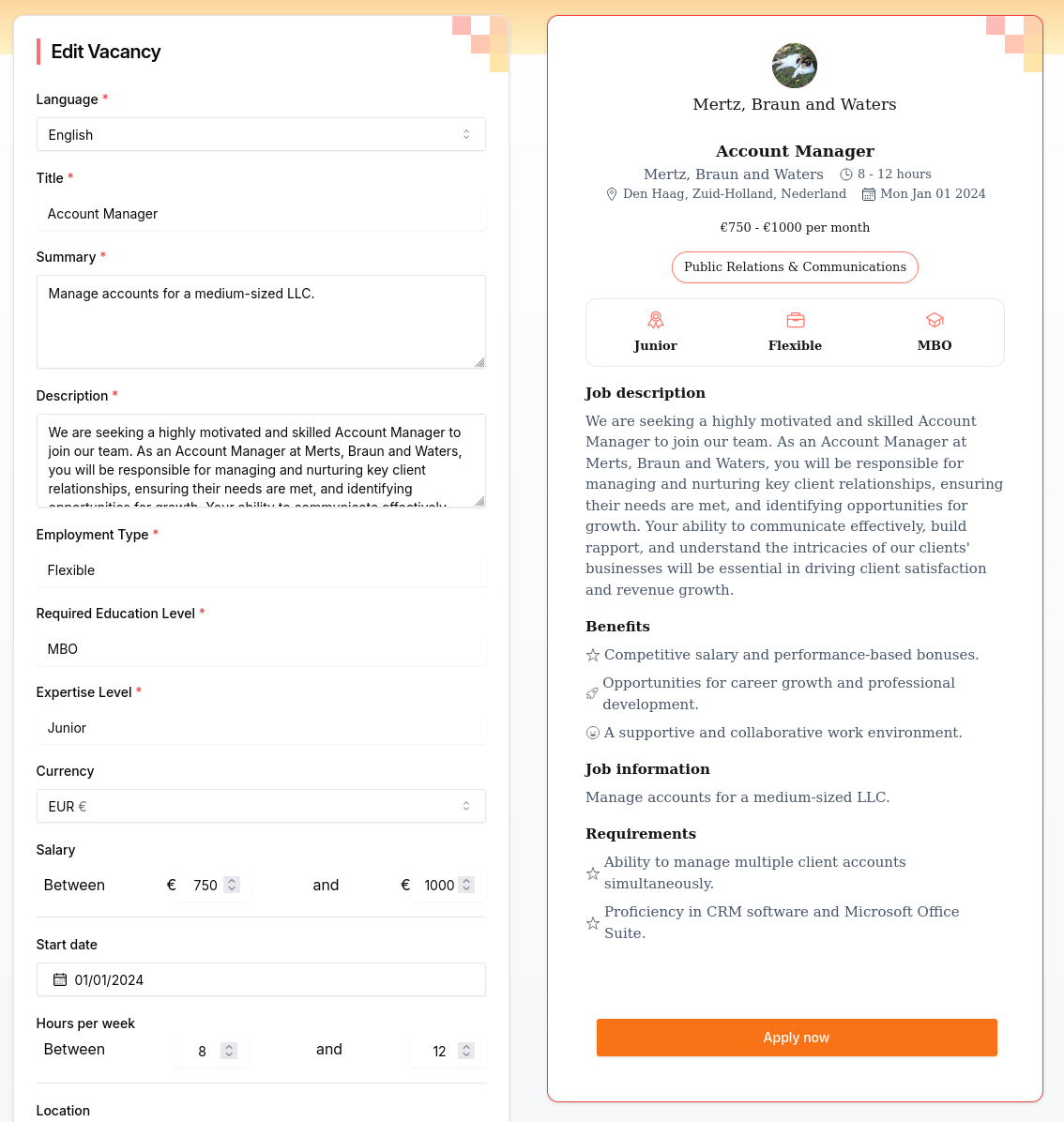
When you're done filling in the details, hit “Create Draft Vacancy” to create the new vacancy. You will be taken to the vacancy management. Here, you'll be able to publish the vacancy and (optionally) create vacancy stories.
The Vacancy should now also show up in the “Draft” section of the Vacancy Overview.
¶ Manage a Vacancy
After creating a draft vacancy or clicking a vacancy on the Vacancy Overview, you'll see the Vacancy Management page. Here, you can view the vacancy in its current state.
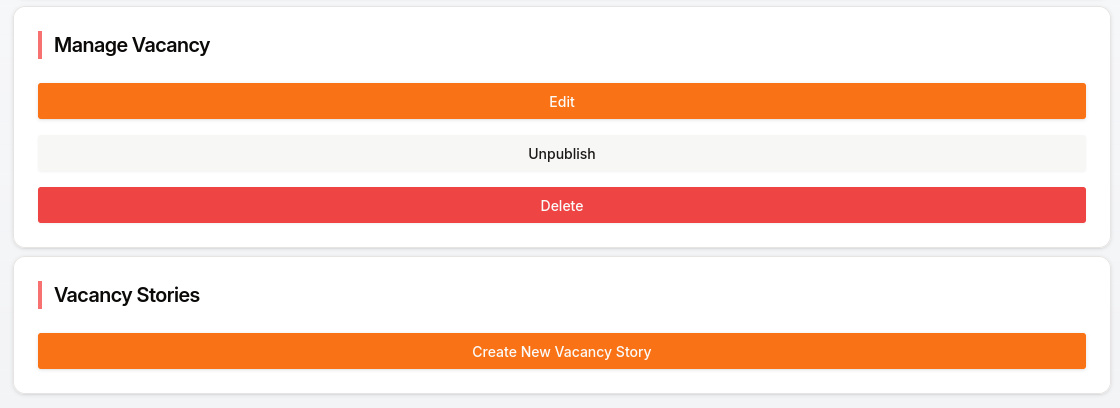
At the bottom, two panels list various available actions:
- Edit the vacancy with the “Edit” button (or click the pencil in the top right of the vacancy view)
- Publish or un-publish the vacancy
- Delete the vacancy
- View and create new Vacancy Stories
¶ Publishing a Vacancy
Before the Vacancy is visible to users on our platform (and before it can be used for Vacancy Stories), it needs to be published. Click the “Publish” button in the “Manage Vacancy” panel:
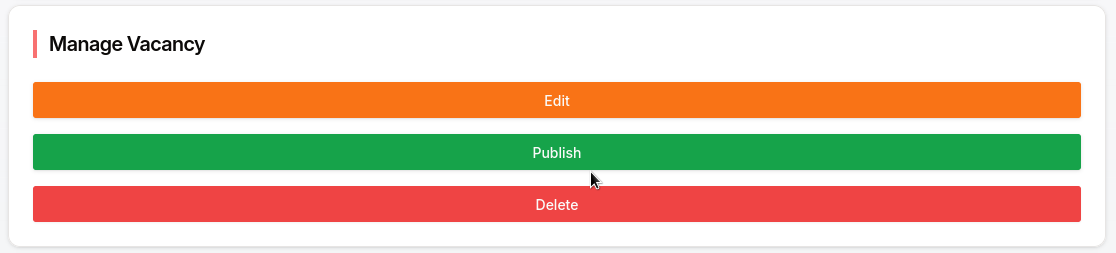
Congratulations, your vacancy has now been published! It should now also show up in the “Active” section of the Vacancy Overview.