¶ Introduction
The Slip app is a visual platform, aligning with the preferred mode of communication of the generations just now entering the professional domain. Traditional vacancies in contrast consist out of blocks and lists of text. Use Vacancy Stories to draw in your target audience and entice them to view the full vacancy.
Vacancy Stories can be thought of as regular Stories with some additional information about the company and job position, and an enticing “Apply Now” call-to-action button.
¶ Prerequisites
In order to create a vacancy story, you'll need:
- A vacancy (see documentation on how to create a new Vacancy)
- A short description explaining what the user is looking at
- Media in the form of 1 or more photos and/or videos
For the media, we recommend creating Vacancy Stories with a short video with a duration of around 1 minute, showcasing:
- The company
- The workplace
- Colleagues
- Any perks
Please make sure all rights are reserved, and consent is given for any people or private property in the photos and or videos. This also applies to background music; when in doubt, use CC0 licensed music.
To ensure the media uploads successfully, make sure the video is properly encoded. Raw video files can be dozens if not hundreds of times larger than re-encoded files, hampering performance. Free software such as HandBrake makes it easy to re-encode video files.
Note: The Vacancy Story also supports multiple segments, i.e. a combination of photos and videos.
¶ Creating a new Vacancy Story
¶ Start creating a new Vacancy Story
From the Vacancy Management page of a given vacancy, click the “Create a New Vacancy” button in the “Vacancy Stories” panel at the bottom:

¶ Enter a description
On the next page, enter a short description to let the user know what they're looking at:
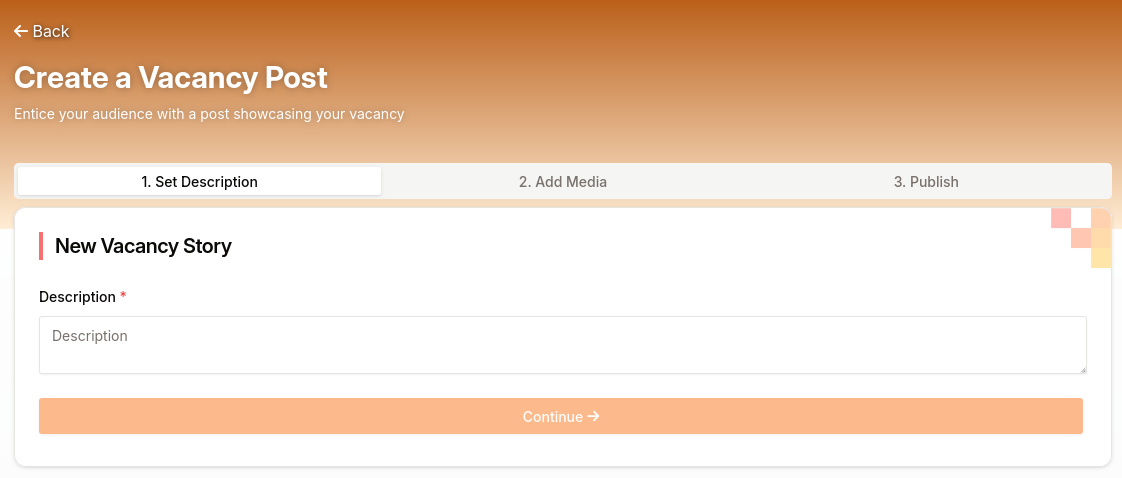
At the bottom of the page, the left column shows what the Vacancy Story will look like on Mobile, and the right column shows the vacancy users will see when they click the “Apply Now” button on the Vacancy Story.

Hit “Continue” in the description panel at the top when you're happy with your description.
¶ Add media to the Vacancy Story
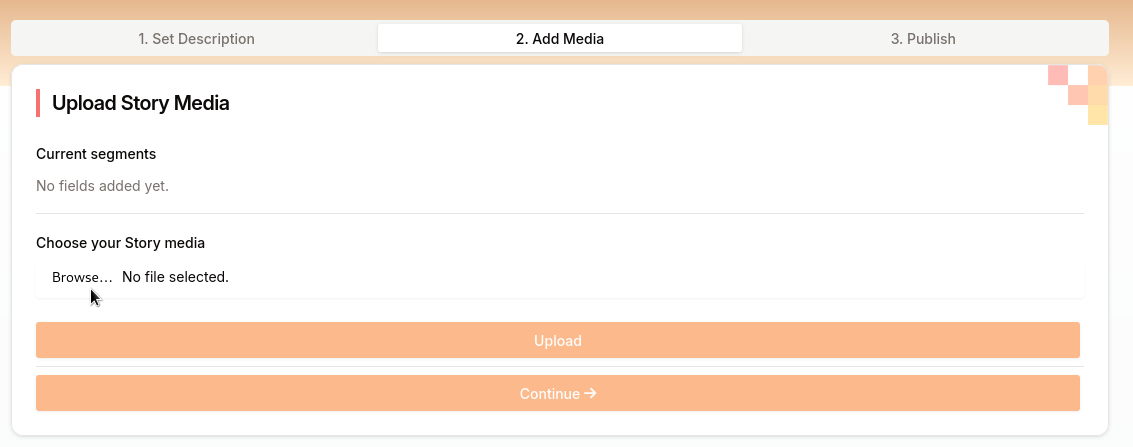
Now you're ready to add Media to the Vacancy Story. Click “Browse” to select your files:
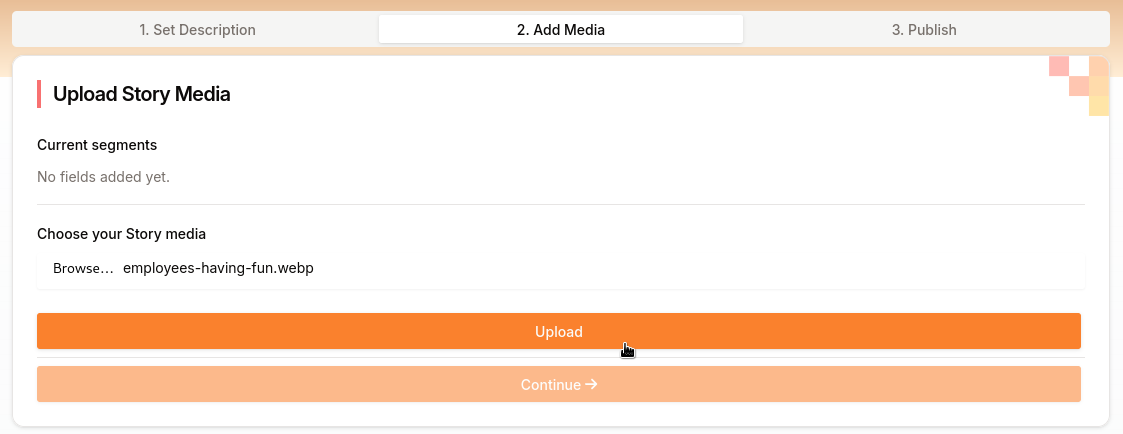
Then, click Upload:
Optionally, add more files by repeating the process. Remove media by clicking the X button at the end of a segment record:

You can now inspect the final Vacancy Story:
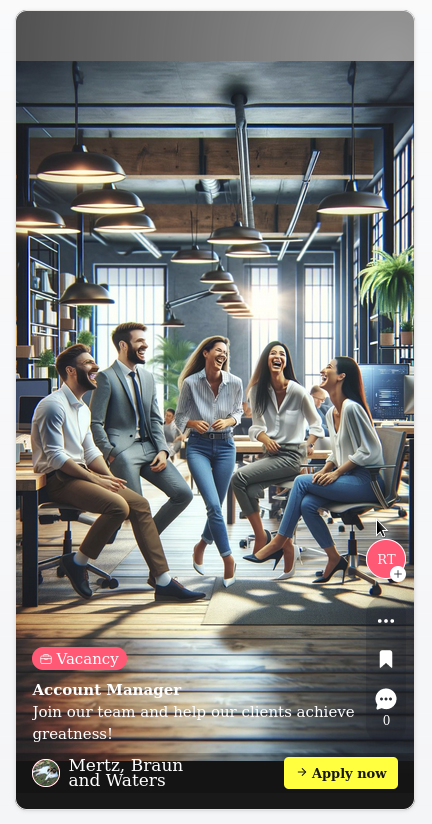
When you're happy with the selected media, click “Continue”.
¶ Publishing a Vacancy Story
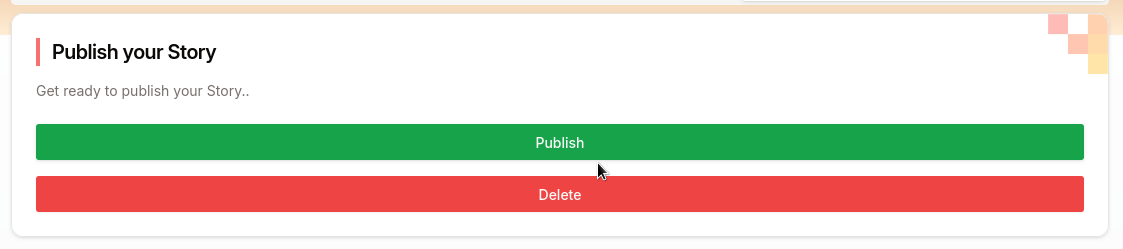
When your Vacancy Story is all set up and the underlying Vacancy has been published, you can publish the Vacancy Story with the “Publish” button:
After publishing your Story, you can always unpublish (hide) or delete it here:
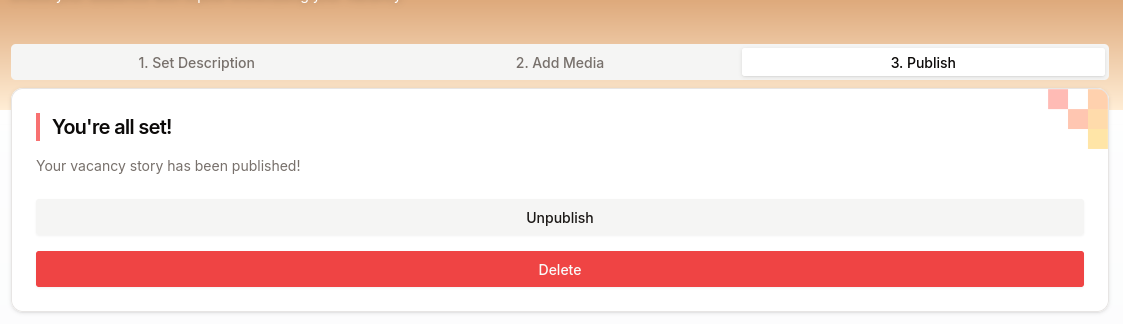
Published stories will be visible for users in their “Trending” feed, and will show up in the “Posts” view of your profile.
All Vacancy Stories for a given Vacancy will be shown in a list in the “Vacancy Stories” panel at the bottom of the Vacancy Management page. From here, you can always go back to the Vacancy Story interface and perform any required actions.

Congratulations, you're all set!
¶ Creating multiple Vacancy Stories for a single Vacancy
It is entirely possible and even recommended to create multiple Vacancy Stories for a single vacancy (i.e. to showcase various aspects of the job, or to experiment with the Story content). Simply click the “Create New Vacancy Story” button to create a new Vacancy Story.
As Stories pop up in feeds for a short time, it is recommended to space out the Vacancy Stories with a couple of days or weeks, so that the target audience will encounter your Vacancy Stories more frequently.